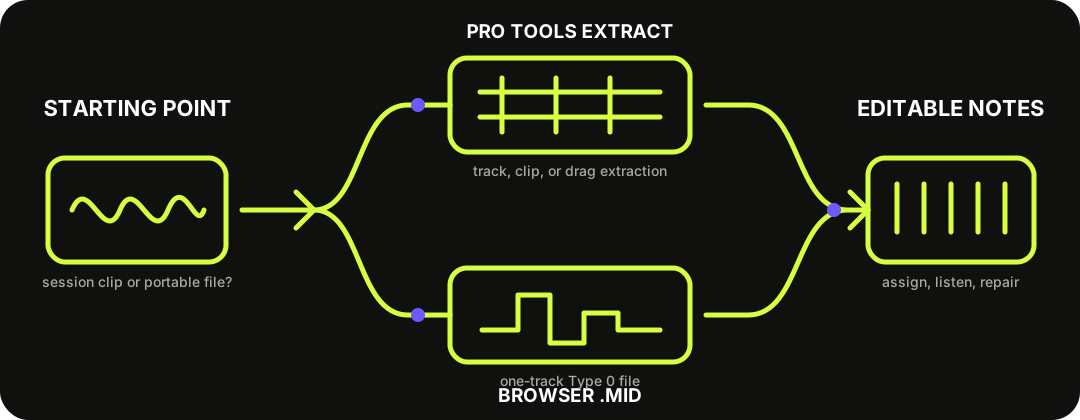
For audio already in a Pro Tools session, use the built-in Melodyne-powered extraction: right-click a track, copy selected clips as MIDI, or drag audio onto a MIDI or Instrument track. Use this browser converter when you need a portable .mid first. Both routes create editable notes, not separated stems or the original sound.
Choose by starting point. Pro Tools analyzes session audio behind the scenes; the browser route hands off a Standard MIDI file.
SESSION CLIP OR PORTABLE FILE
The best route depends on where the audio is now.
Pro Tools route: for a whole audio track, choose Extract MIDI to New Track. For selected clips, choose Copy Audio as MIDI and paste onto a MIDI track. If the destination already exists, drag audio clips directly to a MIDI or Instrument track. Each method opens analysis options before Melodyne supplies the note data.
Browser route: convert one exposed vocal or instrument part, audition the draft, and download a fixed-note MIDI file before opening the session. This is useful for a portable handoff, but it cannot carry an edited Pro Tools clip, expressive pitch curves, or the source timbre.
Choose scope first, then match the conversion type to the source.
01
Set the scope
Use track extraction for every clip on a source track. Use copy or drag for only the selected clips.
02
Choose the destination
Create a new MIDI or Instrument track, paste to an existing MIDI track, or drag directly to an existing destination.
03
Match the analysis
Use a melodic choice for a single exposed line, a rhythmic choice for percussion, and a polyphonic choice for clear chords.
04
Keep the source
Leave the audio active while you assign a sound and compare every detected pitch, boundary, and velocity.
Avid recommends separate conversions when selected tracks contain different source types, so each can use an appropriate conversion setting.
WHAT THE ALGORITHM CHANGES
Polyphonic choices are available in the Pro Tools dialog, but source clarity still matters.
Celemony documents that Pro Tools exposes all Melodyne algorithms for this workflow, including polyphonic ones, regardless of the installed Melodyne edition. For melodic notes, position, length, pitch, and amplitude-derived velocity map into MIDI. For rhythmic or Universal analysis, events share one pitch while retaining their timing, length, and amplitude-derived velocity.
That makes a drum conversion useful as a trigger or timing reference, not a pitched drum transcription. It also means a dense stereo mix is not a request for stems: the selected analysis interprets notes in the combined signal. Isolate the intended vocal, bass, guitar, piano, or drum part before either route whenever possible.
MELODYNE-EDITED CLIPS
Keep Automatic selected when the MIDI should follow existing Melodyne edits.
Celemony warns that selecting a different algorithm can analyze the original recording instead of the melody or chords already changed through ARA. For a previously edited clip, leave the conversion dialog at Automatic when the intended MIDI is the edited performance.
1
Unedited clip — choose the algorithm that matches the source.
2
ARA-edited clip — leave Automatic selected to follow the current Melodyne edit.
3
Different algorithm — expect a new detection that may reflect the original recording.
4
Verify — compare the resulting MIDI against the edited audio before replacing anything.
THE PORTABLE TYPE 0 HANDOFF
The browser file is one fixed-note draft, not a Pro Tools session.
The current writer produces one Format 0 track on one MIDI note channel at 480 ticks per quarter note. It writes a tempo meta event, one program change, and fixed note-on and note-off events with approximate velocity. It does not write source audio, stems, pitch bend, controller automation, markers, or a .ptx session.
Import or drag the file into Pro Tools, route it to a virtual instrument, and keep the original audio beside it. A silent MIDI clip usually means no instrument is assigned. A single lane is expected because the file contains no hidden instrument tracks to unfold.
QUESTIONS, ANSWERED
Audio to MIDI for Pro Tools FAQ
Can Pro Tools convert audio to MIDI?
Yes. Pro Tools 2020.11 introduced Melodyne-powered conversion. You can extract an audio track to a new MIDI or Instrument track, copy selected clips as MIDI, or drag clips onto an existing MIDI or Instrument track.
Do I need to put Melodyne on the track first?
No. Celemony documents that Pro Tools performs this integrated analysis behind the scenes; the audio clip does not need to open on a Melodyne track for the three native conversion actions.
Can Pro Tools convert chords to MIDI?
The conversion dialog exposes Melodyne algorithms including polyphonic choices regardless of the installed Melodyne edition. Chord accuracy still depends on the recording, overlap, effects, and how clearly each note is represented.
Why did my drum conversion create one repeated pitch?
Rhythmic or Universal analysis maps detected events to notes with the same pitch while retaining position, length, and amplitude-derived velocity. Treat those notes as triggers or a timing reference.
Why does the imported browser MIDI make no sound?
MIDI contains performance instructions, not audio. Route the clip to a virtual instrument or external sound source in Pro Tools.
Can either route separate a full mix into stems?
No. These workflows create note interpretations. They do not recover isolated instruments or the original recorded sound from a mixed song.